
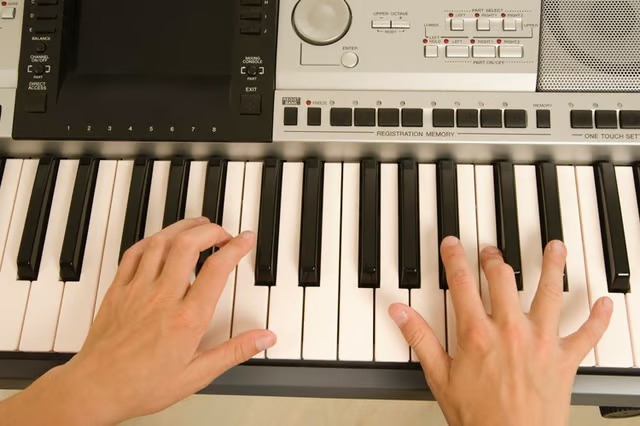


Yamaha keyboards are built in many varieties, from simple player keyboards to complex workstations with frequency manipulation, synthesizer sound banks and mixing capabilities. Despite these differences, all Yamaha keyboards manufactured contain digital wiring for MIDI control and output jacks for connecting to speakers, recording equipment and computers. Even if your Yamaha keyboard has only 61 keys and a volume knob, you can connect to your computer record original multilayered music tracks.
Things You'll Need:
Things You Will Need
Download a recording program for your computer. If you want something free and simple, try Audacity or QTractor. If you want to invest in something more versatile but still easy to use, try Mixcraft or GarageBand. For professional studio capabilities, consider Cubase or Pro-Tools.
Connect your Yamaha keyboard. Using a 1/4-inch to 1/8-inch audio cable, or a 1/4-inch cable with a 1/8-inch adapter on one end, plug the 1/4-inch side into the “Output Mono” jack on your keyboard. If “Mono” does not appear, use “Output L (Left).” Plug the 1/8-inch side into your computer using the Line-In jack.
Open your recording program. Play keys to ensure a successful connection. If you hear no sound, access your “Options” from the menu bar. Ensure that “Line-In” appears as your input source. When you hear sound from your keyboard through your computer speakers, you can begin recording.
Click any blank audio track. If your software enables both MIDI and audio transfer, you should notice two types of tracks in the track list the your left column of your software window. Some tracks will read as “Audio Track” or “Basic Track,” while others read as “MIDI Track” or “Software Track.” Select an audio track, and not a MIDI track, to record using your current connection, and press the “Record” button. Add layers to your music by recording additional lines of music on subsequent audio tracks.
Connect a MIDI cable from your Yamaha keyboard to your PC. If your software reads MIDI notation, you can use your Yamaha keys to control virtual instruments on your screen using MIDI, which stands for Musical Instrument Digital Interface. Attach the cable to the “MIDI Out” jack on your Yamaha and to the “MIDI In” jack on your MIDI to USB converter. Attach the converter to your computer using the USB connector.
Click any blank MIDI track or instrument track to use your Yamaha keyboard as a controller. When you select your track, you should see a list of instrument options on your screen. If you do not see this list, double-click the track to access your track settings. Choose an instrument from the available options. When you select the instrument that you want, return to the main window. Click “Record” to begin recording.